
Is Excel Missing Something?
Ever have or use a formula over and over that isn’t a simple copy and paste formula. Say you have quantities in square feet and want to convert them to square yards. You take your quantity and maybe write something like =900/9. Now this is a simple example but what if we could create a our own formula called SquareYard and be able to reuse it over and over and know what it is doing. We can and shall right now.
LAMBDA
Excel has a top secret function already in its arsenal called LAMBDA and it is structured like this =LAMBDA([parameter1, parameter2, …,] calculation). With this function we can set up parameters and use natural language for them and use those parameters to create a function.
Name Manager
Built right into Excel is a name manager this allows you to select a cell, or group of cells and name it. Once named you can call on it by name in formulas. This allows for more natural language in your formulas which makes them more readable. Lets say your have a column for quantity and you name that range QTY and you have a column for unit price and you name that column Unit_Price you could write a formula that would read =QTY * Unit_Price which is more readable that =A37 * D37.
Writing and Testing Our Function
Using the LAMBDA function we first want to create our function and test it, work out any bugs or errors, and finalize it before naming it.
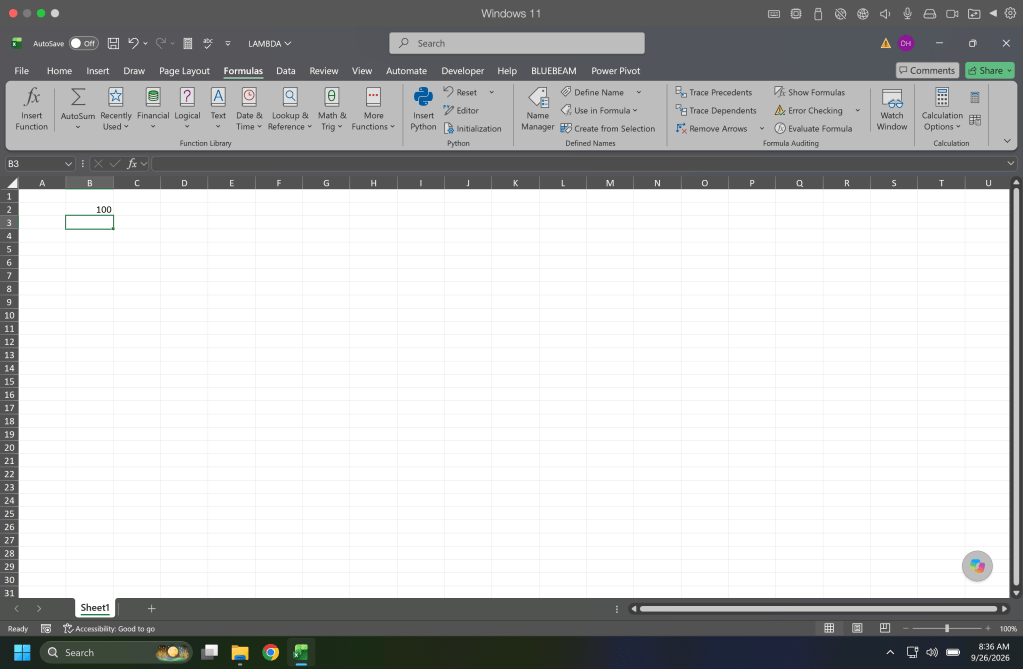
In any blank cell in your workbook write =LAMBDA(Area, (Area/9))(900) and hit enter. This should return 100 which is the square yard equivalent to 900 square feet. The first part of the function is the =LAMBDA(Area, the Area here is our parameter and since we only have one for this we move straight on to our calculation which is (Area/9) now we do not need the parentheses () for this simple formula, but using them sometimes helps us see our calculations better. At the end or our formula we see (900) this is our test. The forumla first reads the LAMBDA function and then immediately applies it to the next part which is our (900).
Naming Our Function
Copy the text of your formula (ie =LAMBDA(Area, (Area/9))) and open up the name manager located on the formulas tab of the ribbon.
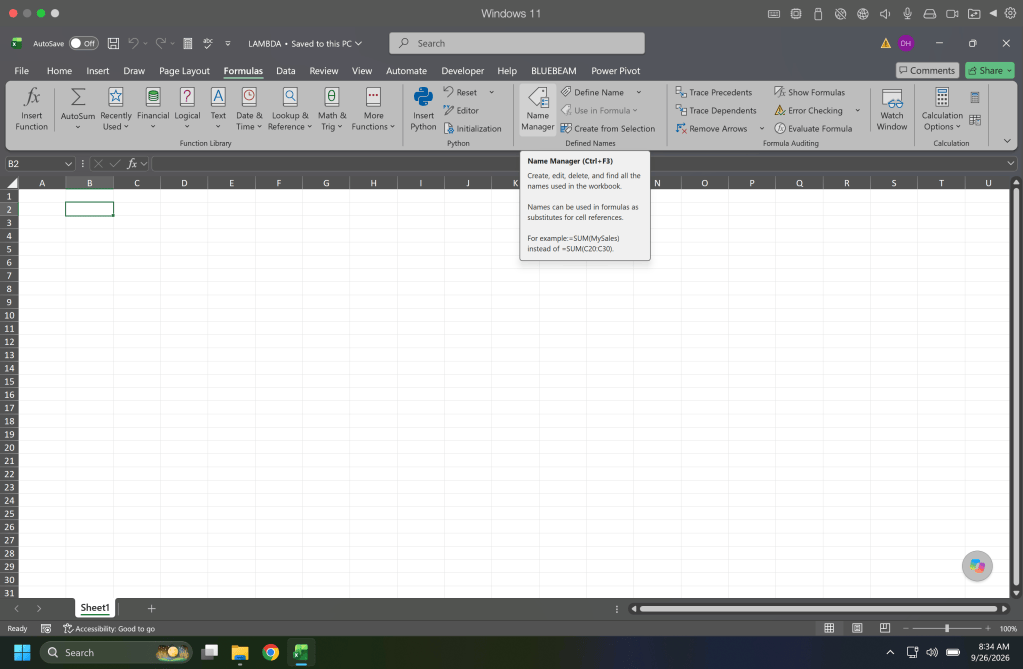
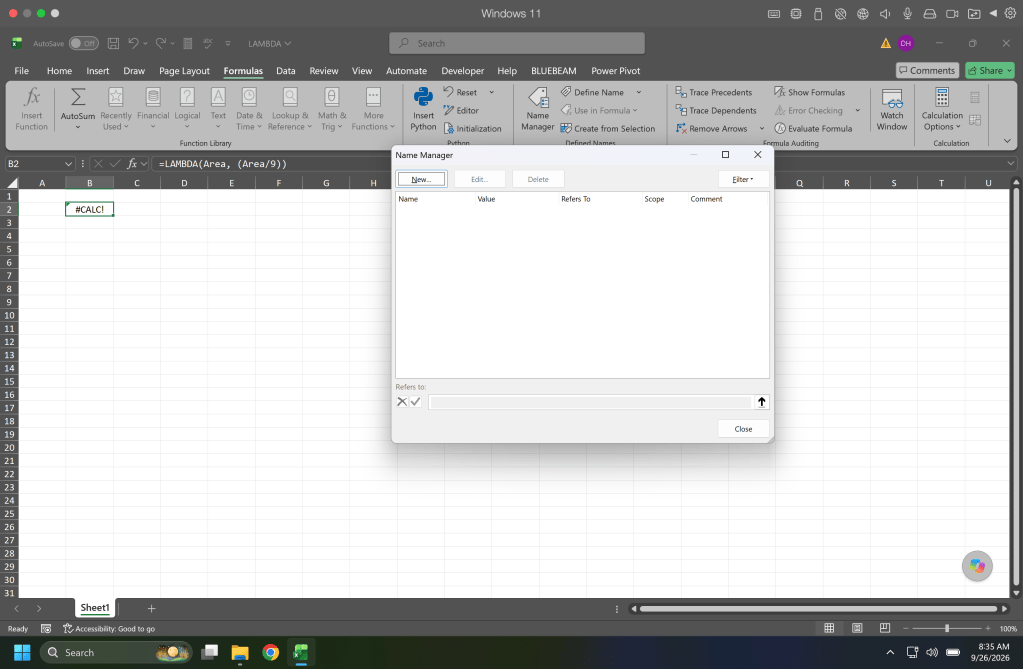
From the name manager select “New” to create a new name.
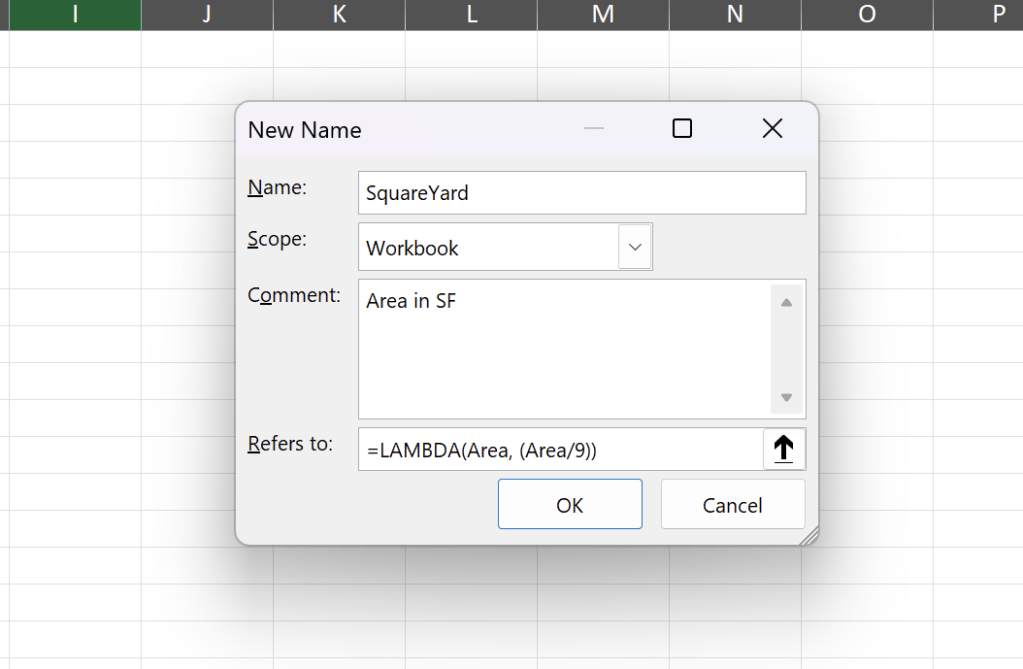
The new name window will pop up and its here where we add our new function. First lets give it a name we can easily remember such as SquareYard. The scope of this name is workbook as we want it to apply on all worksheets. The next section is for comments, these are important so we can tell the user what units to use so that the math is correct. Finally we add our LAMBDA formula in the “Refers to:” area. Click OK and we got a new function.
In a blank cell start typing =SquareYard and your see your function in the list of options. When you get to your function you’ll see your comment telling the user what units to use and when you start filling our your function you will see that the Formula is asking for Area.
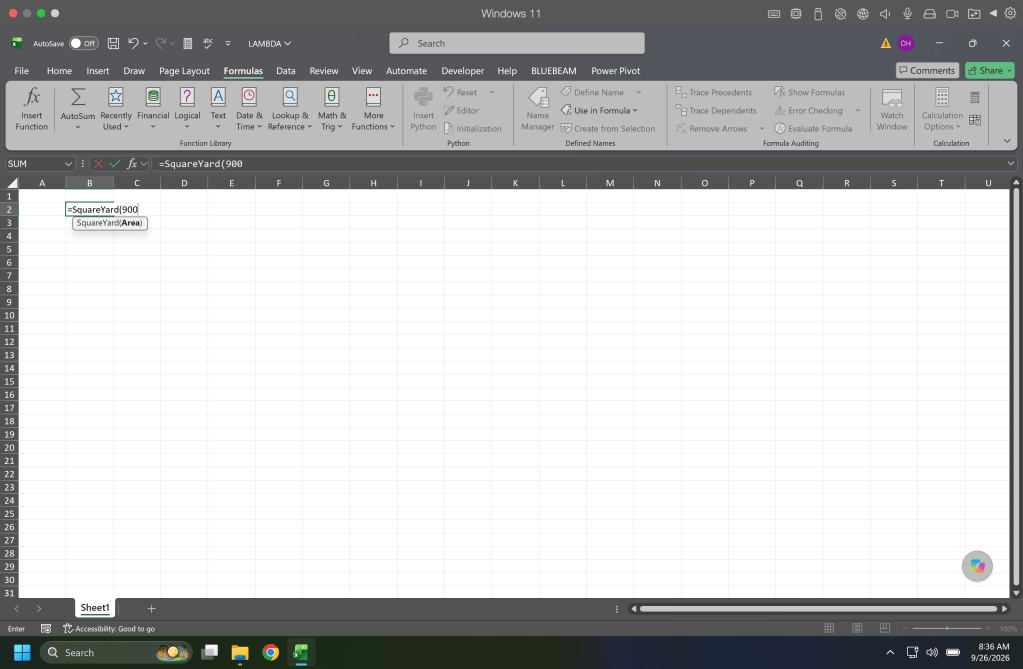
Complete your formula and hit enter to test it again. This is now a function in Excel that you created that can be used by all users of the workbook.
If you create all your custom functions in a standalone workbook on a worksheet with details about your formulas you can move a copy of this into other workbooks and it will bring the formulas into that workbook with the sheet.
A More Complex Example
So maybe just calculating square yards from square feet isnt really something we want. Lets explore something more complex and exciting. Lets say we want a function were we enter the width and depth of a crack and have it return the coverage for our sealant based on container size. An example would be we have a crack that is 1/2″ wide and 1/2″ deep and its 100′ long, we are using 20oz. caulking sausages for this task. How many sausages do we need? In getting to this answer we will come across a coverage of 12 lf/sausage.
To make this a function we first need to determine how much each container size holds. A 10.1 oz catridge fo caulking holds about 18 cubic inches (we need cubic inches not ounces because our units will be in inches), a 20 oz. sausage holds about 36 cubic inches, and a gallon holds about 231 cubic inches. We will use these in our function. So heres our function:
LAMBDA(ContainerSize,JointWidth,JointDepth, LET(Volume, JointDepth * JointWidth * 12, Production, IF(ContainerSize = 1, 18/Volume, IF(ContainerSize = 2, 36/Volume, 231/Volume)), Standard, IF(ContainerSize = 1, "lf/tb", IF(ContainerSize = 2, "lf/sa", "lf/gl")), TEXTJOIN(" ", TRUE, Production, Standard)))
So lets break this down. Our parameters are ContainerSize (this is what container we are using ie 10.1 oz, 20 oz, gallon), JointWidth, and JointDepth. Once our parameters are declared we move to our calculation. Here we start with another function which is the LET() function. This functions lets us state a name or parameter and then state what it is. The first section in the LET() function is Volume which is followed by JointDepth * JointWidth * 12 this is stating that the volume is one foot at the specific width and depth. Next we state Production which is followed by IF(ContainerSize = 1, 18/Volume, IF(ContainerSize = 2, 36/Volume, 231/Volume)) here we are stating each container size and its coverage (ContainerSize = 1 is 18/Volume so this is our 10.1oz tube). Next we have our standard which is followed by Standard, IF(ContainerSize = 1, “lf/tb”, IF(ContainerSize = 2, “lf/sa”, “lf/gl”)) here were are stating how we would read the coverage (ie lf/tb is lineal feet per tube). Finally we have the last calculation with is joining our Production and our Standard TEXTJOIN(” “, TRUE, Production, Standard))). When we name this function and run it we would get something like 12 lf/tb (12 lineal feet per tube).
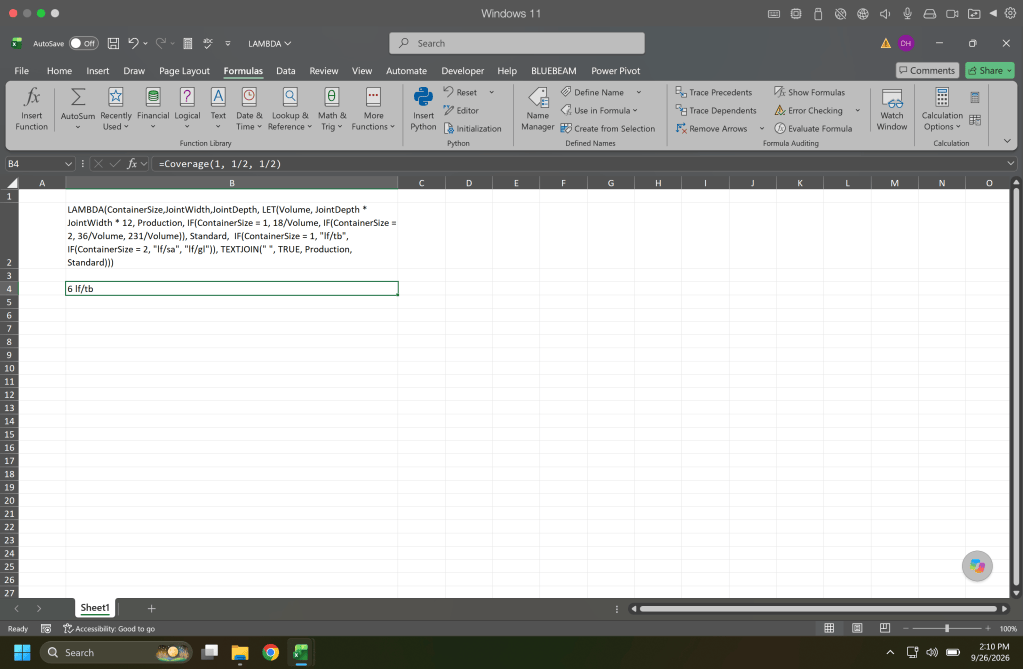
Now we have a handy coverage calculator that is a function in Excel for us to use. This is a great technique to use for different formulas you come across and need to be able to easily replicate.

